
How to use
The simulation parameterization is performed through the five tabs of the LiGRO program. The user can access this page at any time by the "Help" button (1) or close program by pressing the "Exit" button (5). In the "Input Files" tab the user must insert the PDB protein file through the "Browse .." button (2). The mol2 cofactor (if there is) file must be selected by the "Browse .." button (3). Ligand mol2 file must be selected by the "Browse .." button (4). This files must be previously located in the desired coordinate, becouse LiGRO does not perform docking! If only the protein is selected, LiGRO will automatically perform a protein simulation in water. If only the cofactor or the liagnd is selected, LiGRO will not perform simulations. If only the protein and cofactor are selected, LiGRO will also not perform the simulation.
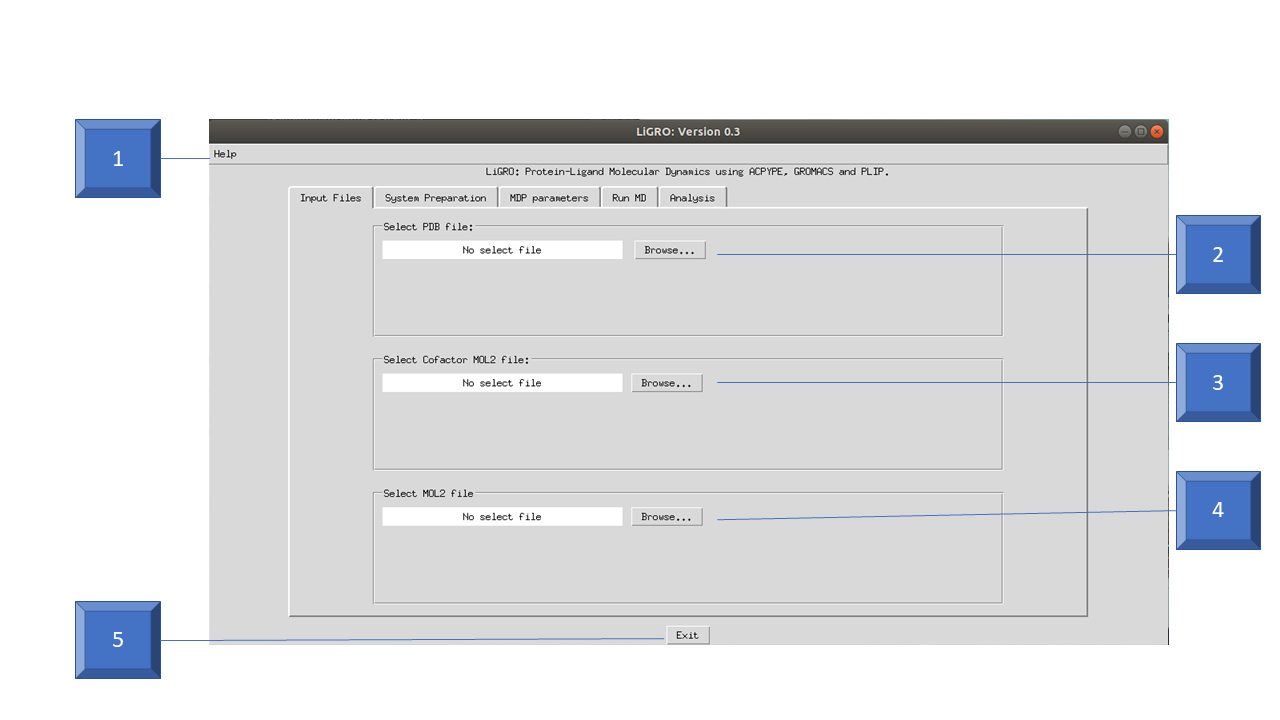
In the "System Preparation" tab, the user must select the user can select the force field to be used to parameterize the system topology (6). If metal atom complexed to the protein topology parameterize is necessary, the user can select it by the "Metal" button (7). If the metal atom is not found in the list, it can not be parameterized. Often, in order to avoid protein topology parameterization errors, it is necessary to ignore the macromolecule hydrogen atoms. To do this, simply check the "Ignore Hydrogen atoms" box (8). The ligand parameterization is performed by selecting the charge method (9), the net charge (10), the atom type (11) and the multiplicity (12). If an external program is used to generate the ligand charges, the "user" mode (charge method) must be selected for this parameter to be maintained. Select the water model to be used in the simulation using "Select Water Model" button (13). The simulation box type is selected by the "Select Box Type" button (14). The distance between the solute and the simulation box edge can be determined by the "Distance" box (15), the values must be described in nanometers. The system neutralization parameterization can be performed in two ways: by NaCl concentration in mol / liter or by Na + / Cl- ion units. To do this, select the method on the button (16) and determine the value in the text box.
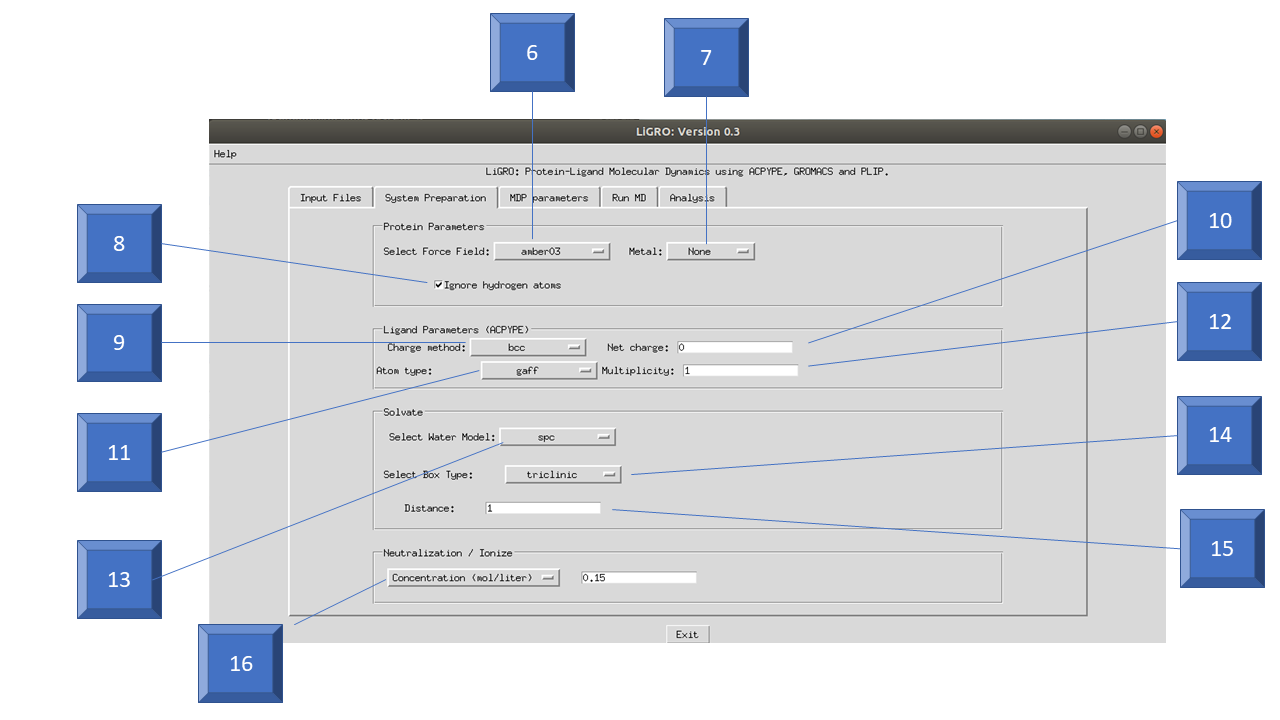
Through the "MDP parameters" tab the user can determine the time of the step for integration (17) and the temperature of the system (18). The user can also select the maximum number of system minimization steps (19) and the minimization algorithms, which can be Steepest Descents or Steepest Descents + Conjugate Gradient (20). The time of NVT (21) and NPT (22) ensembles simulations can be determined by the number of steps. For example, 500,000 steps * 0.002 picoseconds (time step for integration) = 1000 picoseconds. The molecular dynamics time can also be determined by the number of steps (23).
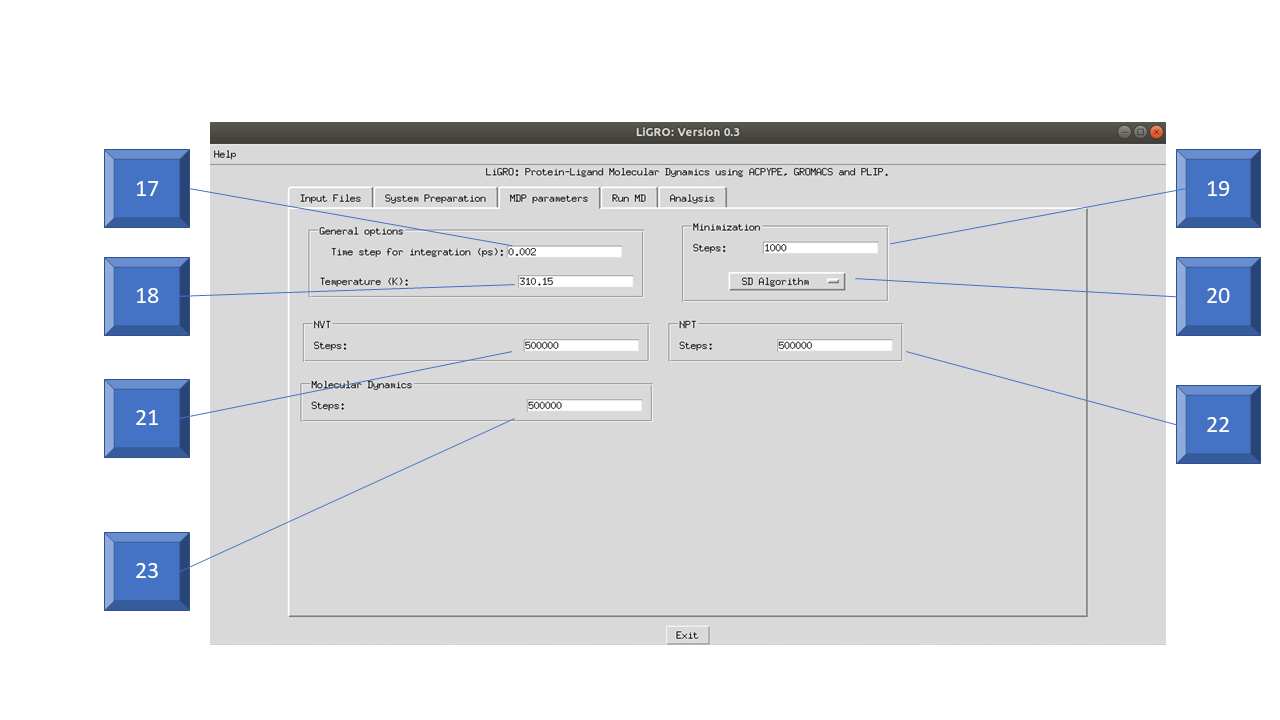
In the "Run MD" tab, the user can to denominate the project (24) and select the directory where the output files will be saved (25). The user can save the files generated by the simulation checking the "Explain MD folder" box (26). The folder will have the same name as the project. The LiGRO program offers the option of saving a complex topology file to run on a GROMACS server (27) or run the local simulation (28). In both processes, the user should wait for the ensemble simulation time.
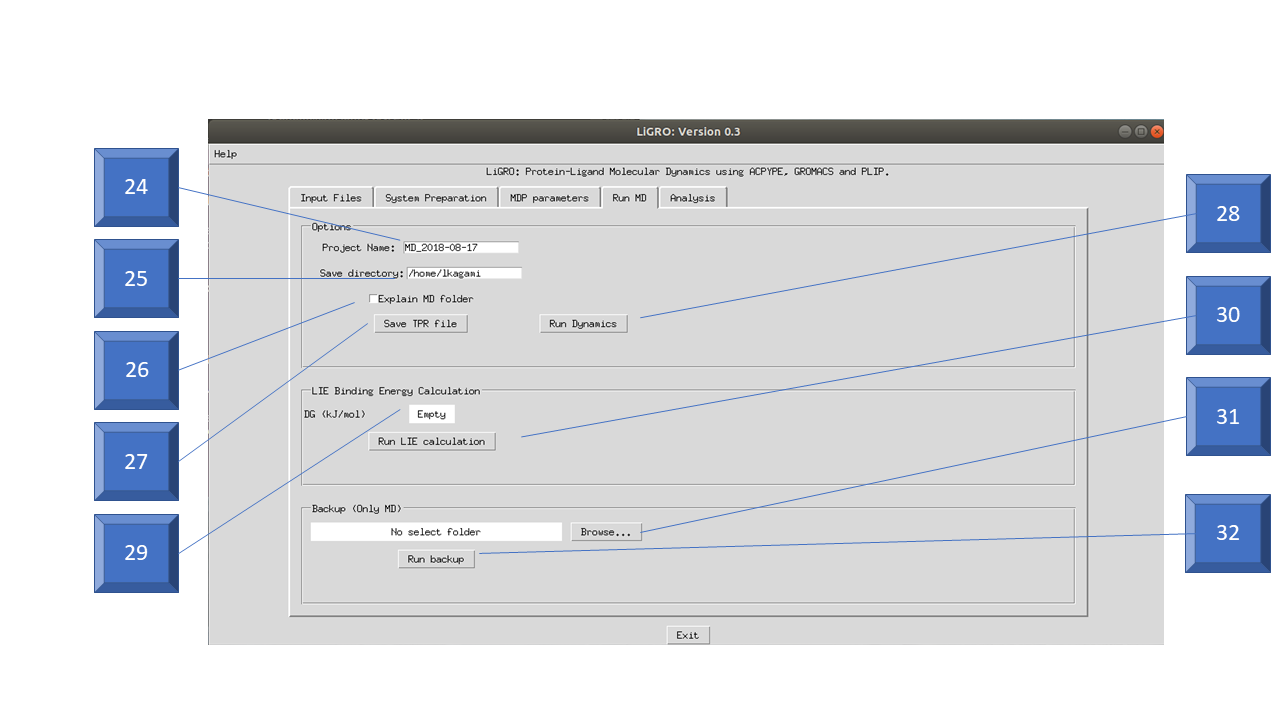
In order to perform the LIE calculation, the user must have a protein (2) and a ligand (3) selected in the "Input Files" tab. The program will take into account the number of "NVT" (21) and "Minimization" (19) steps determined in the "MDP parameters" tab. Execute using the "Run LIE calculation" button (30). The result will appear in the DG (kJ / mol) box (29). If the user saves the files from the simulation, it is possible to restart the simulation process. To do this, locate the folder saved by LiGRO using the "Browse ..." button (31) and then run pressing "Run backup" button (32). The "Analysis" tab should be used only when the molecular dynamics simulation is complete. The generated TPR file must be selected by the "Browse ..." button (33), as well as the generated XTC file (34). For energy analysis, EDR file must be select by "Browse ..." button (35).
To perform the molecular dynamics trajectory analysis, it is necessary to select the structure to be analyzed (36), the type of analysis to be performed (37) and press the "Run" button (38). The selected analysis graphic will be generated automatically and can be saved where the user determines. After the graphic window is closed, a text file containing the maximum, minimum, and average analysis values will be opened, and this file can be saved where the user determines. In addition, when the analysis process is finished, the XVG file will be saved in the directory (25) gived in the "Run MD" tab. The LiGRO and Protein-Ligand Interaction Profiler (PLIP) program integration provides an protein-ligand interaction analysis, at the user time determined (39). To do this, the "Run" button (40) must be pressed.

Good Simulations!!